TRY ACCOUNTING SCALABLE

Try your bookkeeping. Discover first. Then post for yourself.

Explore bookkeeping for GmbH and UG with fictitious data in the read-only demo. Then request your personal test instance for your own documents, bank accounts and entries.

PUBLIC · READ-ONLY

View the App with sample data1

Switch companies, open documents and explore reports – with four fictitious companies in the read-only demo.

  • Prepared sample data instead of your own data
  • Explore companies, bookings and receipts
  • View existing reports
Open live demo ↗

The app is currently mainly in German. You can try your browser’s automatic translation in this public read-only demo. Translation availability and results depend on your browser and device. Product support is available in English.

Explore four example scenarios Explore with AI: set up demo MCP
PERSONAL · KEEP YOUR OWN BOOKS

Work with your own data

Upload documents, connect bank accounts and do your own bookkeeping. We set up your personal instance with its own address for this.

Your request triggers a confirmation email. You receive access to your own test instance only after confirmation and provisioning.

Your personal demo also uses the mainly German application interface and in-app help.

  • Upload and assign your own receipts
  • Connect bank accounts and retrieve transactions
  • Try your actual workflows
Request a personal demo ↓

Free for 30 days. The trial period starts when your personal instance is provisioned.

The demo ends automatically after 30 days. There is no automatic renewal or automatic switch to a paid plan.

Costs arise only when you explicitly sign up for a plan.

DEMO AND DATA ACCESS

Connect the demo to your AI assistant.

Connect your assistant directly to the public demo. The MCP address and public read token are provided here, with no registration or credential request. Access is limited to reading synthetic sample data.

How to set up read access

Enter the demo MCP address and public read token in your MCP-compatible client. Use Streamable HTTP with Bearer authentication.

The public demo read token is already provided. No personal registration or credential request is required for this access.

  1. Add the demo MCP address as a separate connection in your assistant.
  2. Copy the public demo read token into your client’s Bearer field or a designated environment variable. Do not use personal instance tokens for the demo.
  3. Use Streamable HTTP. If your client requires manual headers, set Authorization to Bearer followed by a space and the public read token. Do not use OAuth sign-in or append the token to the URL.
  4. Check capabilities_get and explicitly select a company from companies_list. The demo agent can read all synthetic companies in this demo.

The demo App MCP is intended for synthetic sample data. For your own data, use the MCP address and actively configured agent of your personal instance. Personal instance tokens belong only in the private client.

Select Bearer authentication and enter the public demo read token. For manual headers, use Authorization: Bearer followed by a space and the token. This public access applies only to the read-only demo.

Request help connecting to the demo MCP →

HTTP 401: check the demo MCP address, public read token and Authorization Bearer header. Contact us for connection help. Personal instance tokens remain private.

A first task for your AI

Explore only approved synthetic data in read-only mode. Check capabilities_get and list companies and their IDs with companies_list. Explicitly select the company I have confirmed. Show three existing entries and a document link. Do not invent IDs or perform any write or send action.

The first read requests in detail

After initialize, discover current schemas with tools/list. companies_list({}) returns the companies. journal_entries_search({company_id: "<bestätigte ID>", limit: 3}) reads existing entries; journal_entry_get({company_id: "<dieselbe ID>", journal_entry_id: "<gefundene ID>"}) reads their details. The actual schemas govern use.

After initialize, discover current schemas with tools/list. companies_list({}) returns the companies. journal_entries_search({company_id: "<bestätigte ID>", limit: 3}) reads existing entries; journal_entry_get({company_id: "<dieselbe ID>", journal_entry_id: "<gefundene ID>"}) reads their details. The actual schemas govern use.

The website MCP at https://accounting-scalable.de/mcp provides product knowledge and needs no token. The demo-app MCP is a separate data space containing synthetic data. Your personal app MCP requires your own explicitly configured agent. None of these data connections alone provides browser control or ELSTER submission.

Website MCP address: https://accounting-scalable.de/mcp. No token required. Select a connection without authentication in your client.

Start with a specific question

Four companies. Four short exploration tours.2

Discover a workflow similar to your business: work statuses in a holding, invoices in consulting, fixed assets in property and quotations in furniture manufacturing.

Select the appropriate company in the App's company selector. Depending on window width, find the selector in the top-right menu. The dashboard continues to show an overview of all companies.

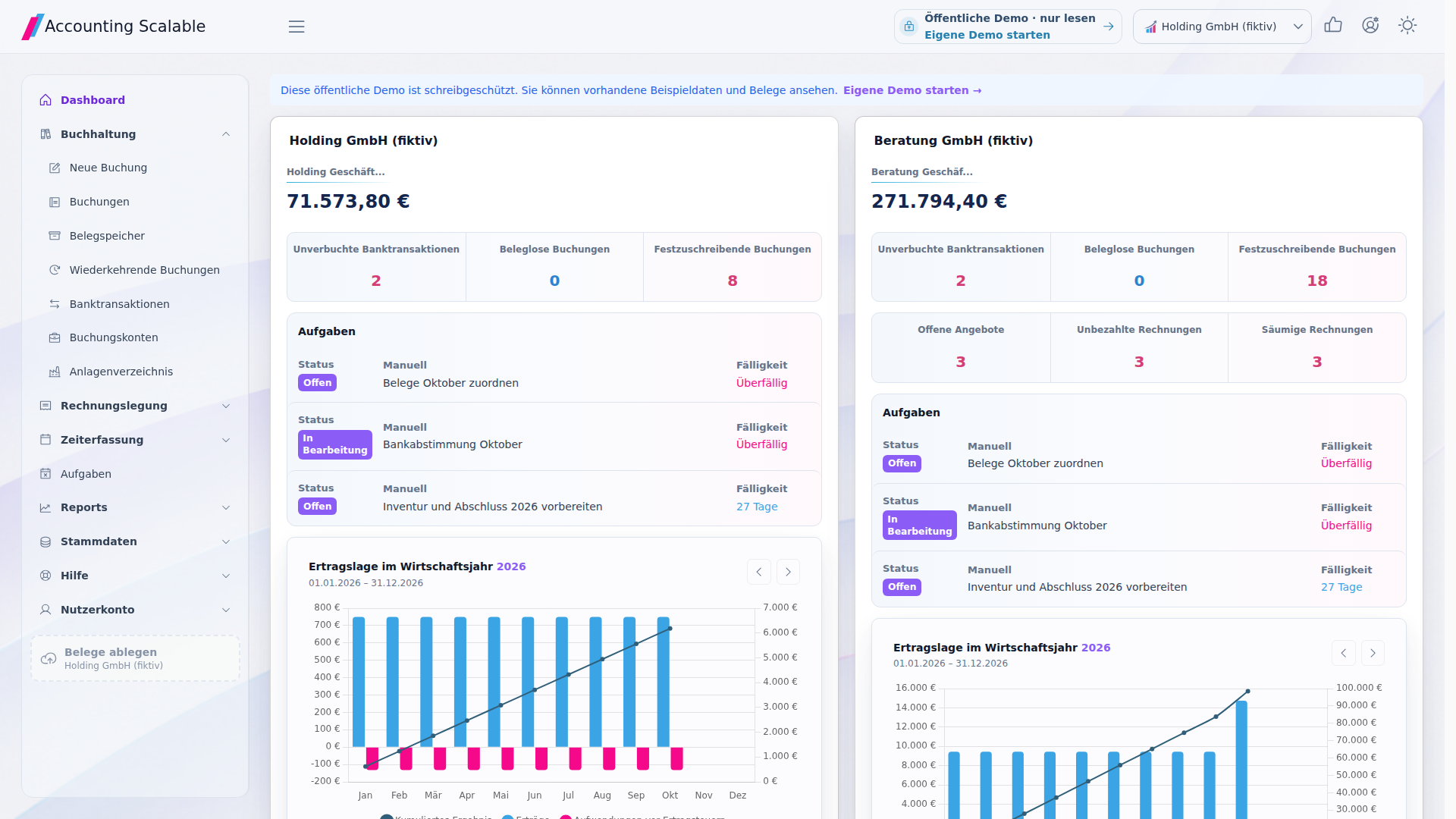
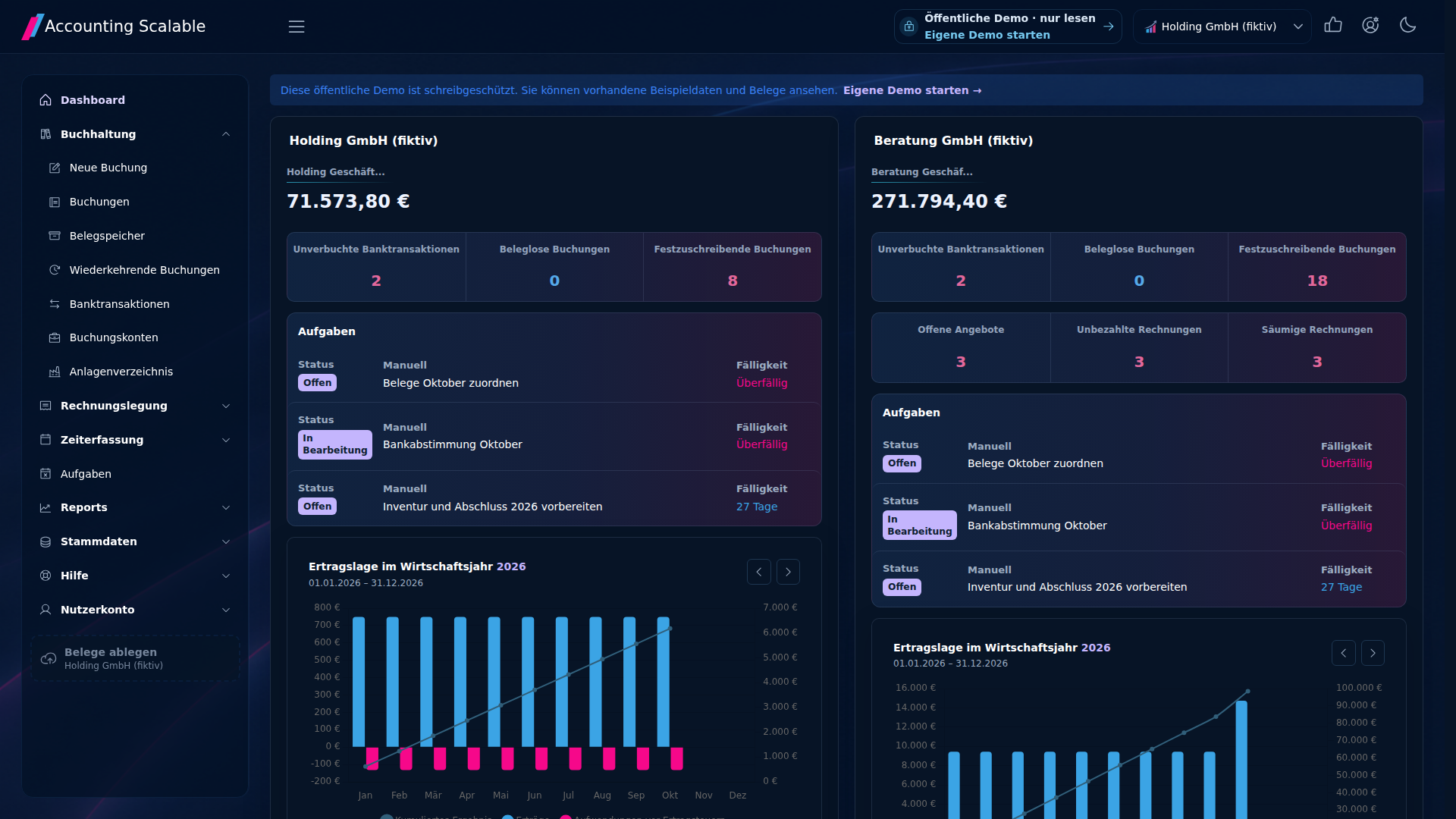
Work overview for the four fictional demo companiesWork overview for the four fictional demo companies in dark mode
The actual App with four synthetic companies. The example shows work statuses in the demo dataset.
HoldingSee outstanding work across multiple companies.Holding GmbH (fictitious)

A holding with subsidiaries, management charges and prepared year-end accounts.

  1. Compare company cards in the dashboard: where are bank transactions open and entries not yet finalized?

  2. In the holding card, open “Unverbuchte Banktransaktionen” (unposted bank transactions) and review the two prepared transactions.

  3. Select the holding as the company, open “Belegspeicher” (document storage) and view an existing sample document.

See shared work statuses while documents and entries remain with their company.

View multi-company bookkeeping
Advisory servicesTrace an invoice and its payment status.Beratung GmbH (fictitious)

Project consulting and workshops with customers, quotations and invoices at different processing stages.

  1. Select “Beratung GmbH (fiktiv)” (fictitious consulting company) in the company selector.

  2. In the dashboard's consulting card, open “Unbezahlte Rechnungen” (unpaid invoices).

  3. Open an existing invoice and check line items, document status and the available preview.

See how invoice line items, document status and preview fit together.

View invoicing
PropertyClassify fixed assets and long-term values.Immobilien GmbH (fictitious)

A property company with a land component and rented apartment, rental income and running costs.

  1. Select “Immobilien GmbH (fiktiv)” (fictitious property company) in the company selector.

  2. Open “Anlagenverzeichnis” (fixed asset register) and compare the land component and rented apartment: which acquisition values and depreciation methods are stored?

  3. Under “Reports”, open “Bilanz” (balance sheet), select the desired period and view the read-only preview.

See the relationship between assets, depreciation and bookkeeping.

View fixed assets and year-end accounts
MöbelwerkExplore products and sales documents.Möbelwerk GmbH (fictitious)

Furniture sales with product catalog, goods purchases, workshop equipment and prepared sales documents.

  1. Select “Möbelwerk GmbH (fiktiv)” (fictitious furniture company) in the company selector.

  2. Under “Rechnungslegung” (invoicing), open “Produkte” (products) and view the prepared catalog.

  3. Switch to “Angebote” (quotations) and open an existing quotation with its line items.

Learn the path from reusable line items to a finished sales document.

View sales workflows

Continue working with your data

The next document could be yours.

Start with your own business transactions: upload documents, connect bank accounts and record your first entries.

Request a personal test instance

Speed in your bookkeeping

Respond promptly. Work with fewer detours.

1. Technical speed: shorter waits

What matters while working is how quickly a view loads and responds to input: opening a document, filtering the posting list or selecting another company. Already loaded views can reuse existing resources; an initial request loads additional data and program components.

2. Faster workflows: fewer detours

Work on the document, entry and bank link in one application. Switch work steps in the same context instead of manually passing files between tools. The company remains explicitly selected; professional reviews and approvals remain your responsibility.

  • Open a document

    Open an existing document from document storage or its linked entry. Check the original and continue to the associated entry.

  • Filter entries

    Narrow the posting list with the available filters and open a result. This lets you check accounts and document links from the same workspace.

  • Switch company

    Select the other company in the company menu. Continue working with its own dataset; switching does not combine separate books.

  • Link a document to an entry

    In an editable entry, select the appropriate existing document and save the link. Check company, transaction and file. Your own changes require a personal instance with write permissions.

Explore the transactions in the demo →

Support in German and English.

You can ask product and technical questions in German or English. The app interface and existing in-app help are predominantly German.

Discuss use and language →

Check performance against your own workflow

Five tasks. Your everyday work.

Short load and response times help when opening documents, filtering entries and switching companies. How quickly your view is ready also depends on the dataset, device and connection.

In the public demo, you can read and navigate. Uploads, assignments and your own bookings require a personal test instance.

  1. Select company and financial year.
  2. Find and open a specific receipt.
  3. Assign a bank transaction.
  4. Trace a booking with its accounts and receipt link.
  5. Check the required export or report.

If you compare timings yourself, use the same tasks and data, and record the browser, device, network and whether it is a cold or warm start. No benchmark figures are promised for the app here.

You can also prepare annual accounts yourself. Explore the assistant and existing annual accounts documents in the read-only demo; your own closing entries and approvals belong in your personal instance.

Annual accounts and scope of tax returns →Check with your own data ↗

YOUR OWN TEST INSTANCE

A dedicated place for your bookkeeping.3

Complete the details and confirm your email address. We will set up your test instance and send you access information.

For businesses. A personal test instance with its own address.

Free for 30 days. The trial period starts when your personal instance is provisioned.

The demo ends automatically after 30 days. There is no automatic renewal or automatic switch to a paid plan.

Costs arise only when you explicitly sign up for a plan.

Prefer to start with your AI assistant? Request a demo through MCP →

3–40 lowercase letters and digits. Checking does not reserve the name yet.

Find out how we use your contact details to handle your request in the privacy information.

Content updated on .

Notes and requirements

  1. The public demo contains only fictitious data and is read-only. Navigation, filters and existing downloads are available; uploads, new entries, bank authorizations, sending and production filings remain blocked.

  2. The sample scenarios show bookkeeping workflows. Rental management, property valuation and inventory management are not included. Displayed filing statuses are not real transmission or tax office evidence.

  3. The personal test instance becomes accessible after your request, email confirmation and provisioning. An accepted request is not yet a fully configured instance or a paid order. The offering is exclusively for business customers. Available bank connections depend on the bank and authorization with the data provider. Read the terms and conditions