 Accounting Scalable
Your daily access
Capture documents digitally. Work online.
Capture documents where they arise: select a file, assign a company and store it. Work online in the browser or in the installed PWA's own window and sign in with your passkey.
Speed in your bookkeeping
Respond promptly. Work with fewer detours.
1. Technical speed: shorter waits
What matters while working is how quickly a view loads and responds to input: opening a document, filtering the posting list or selecting another company. Already loaded views can reuse existing resources; an initial request loads additional data and program components.
2. Faster workflows: fewer detours
Work on the document, entry and bank link in one application. Switch work steps in the same context instead of manually passing files between tools. The company remains explicitly selected; professional reviews and approvals remain your responsibility.
- Open a document
Open an existing document from document storage or its linked entry. Check the original and continue to the associated entry.
- Filter entries
Narrow the posting list with the available filters and open a result. This lets you check accounts and document links from the same workspace.
- Switch company
Select the other company in the company menu. Continue working with its own dataset; switching does not combine separate books.
- Link a document to an entry
In an editable entry, select the appropriate existing document and save the link. Check company, transaction and file. Your own changes require a personal instance with write permissions.
The feature scope
What you can do with it.
Select document files on your device, assign them to the correct company and continue processing in your online PWA.
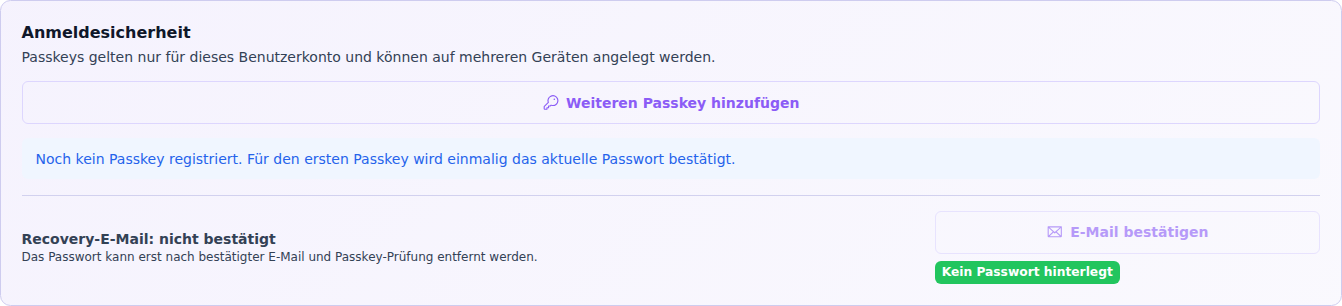
Manage multiple passkeys
Register, name and revoke your own passkeys. Sign-in uses local confirmation on the device or authenticator.2
Recover access
For human accounts, recovery through confirmed email and short-lived one-time links is available when the requirements are met.
Use the knowledge database
Search user guides and curated technical articles by topic. An authorized MCP agent can also read and quote approved content.3
Support directly in the app.
Create support requests directly in the app and continue the conversation in the integrated portal, without a separate email workflow. Support is available in German and English; scope and priority depend on your plan. Your authorised AI assistant can read cases and replies and, on your instruction with write access, create a request. Continue further communication in the portal.
Installable online PWA
Capture documents where they arise
Open the online PWA in its own App window and store document files from your device in the appropriate company. On supported devices, you can also pass files to the installed App through the share dialog.2
- 01 /
Select receipt file
Select PDF, JPEG, PNG or XML on your device. Alternatively, use “Share” if your system offers the installed app as a destination.
- 02 /
Check company
Select the right company and check that the receipt belongs to it. Installing the app does not replace this assignment.
- 03 /
File it and keep working
Store the receipt, find it again and check it during the subsequent booking workflow. An internet connection is required.
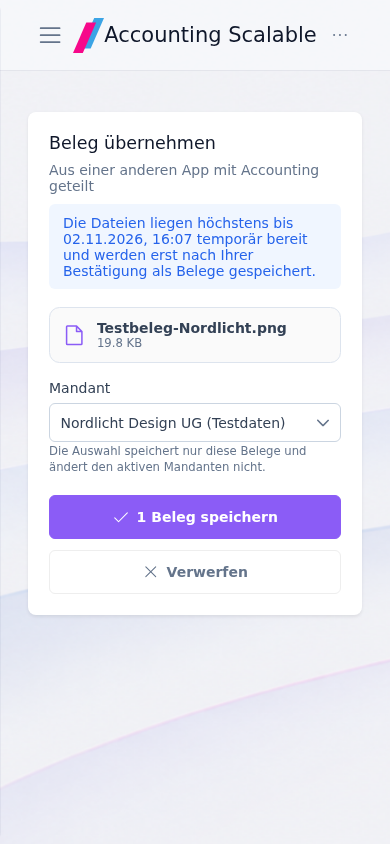
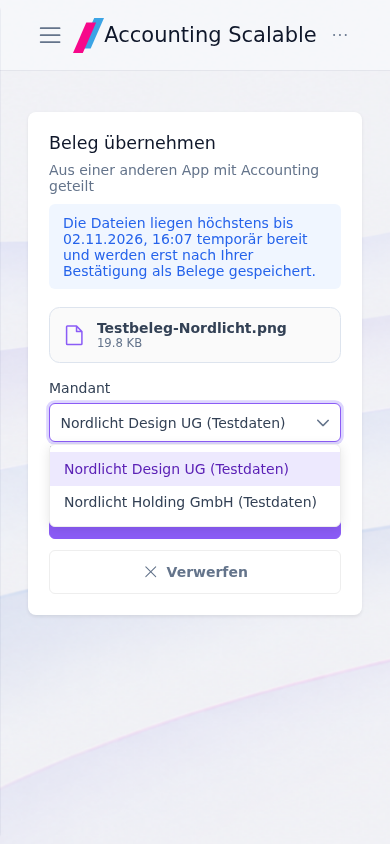
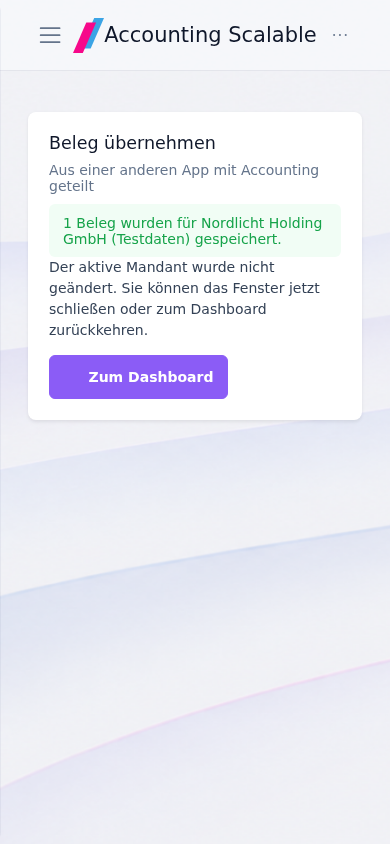
App views with fictional test data. Tap or click an image for the full view.
How to work with it
A clear workflow.
Set up access
Set up your own sign-in method and the required email confirmation.
Test a passkey
Register your passkey and test the new access before removing other sign-in methods.
Continue working online
Use the browser or the available installation method. Instructions remain available in the App.
Your questions
Brief answers.
How do I sign in with a passkey?
Register the passkey in your user profile, then confirm sign-in on your device.
Where do I find instructions?
The knowledge database in the App contains searchable user guides and technical articles. An authorized MCP agent can also read and quote them.
ACCESS & ENVIRONMENT
A web app. Your familiar environment.2
Your bookkeeping is where you work: online in the browser, on the desktop and on the go. The web app can also be installed.
Browser
Desktop & mobile devices
Connected
The next step in your workflow.
See for yourself
See the workflow.
Explore sample data or start your own test instance with your data.
Content updated on .
Notes and requirements
The PWA works online. A native app-store app or offline bookkeeping is not offered.
Installation and file transfer depend on browser and operating system. In supported Chromium environments, the installed App can appear as a share target. Without such a share target, select the file directly in the App. An iOS share target is not part of the described workflow.
Agent access uses tokens instead of human passkeys. MCP requires a client that supports the App's transport and authentication.
The offering is exclusively for businesses within the meaning of section 14 BGB.