 Accounting Scalable
Guide · As of
Switch to Accounting Scalable: year start, DATEV or AI
You can start a new financial year in Accounting Scalable with reconciled opening postings, or bring in current-year postings through the supported DATEV import. An MCP-capable AI assistant can automate the transfer of readable exports, master data and supporting documents. The right route depends on your cut-off date and records. With every route, you review the transferred data and give final approval.1
Who is it for? Business owners doing their own bookkeeping for a German GmbH or UG who want to move their existing records to Accounting Scalable.3
Three routes for your move
Your cut-off date and transfer method are two separate decisions. AI can assist with a move at the year start or during the year. You can combine the routes, for example by importing DATEV posting batches and then transferring documents with your AI assistant.
In Accounting Scalable you can manage ongoing bookkeeping and prepare the annual financial statements yourself, including without a tax adviser. You retain responsibility for the transferred records and subsequent work; you can seek advice on specific questions.
On narrow screens, you can scroll the table sideways. With a keyboard, focus the table first.
| Route | Suitable when … | What you transfer |
|---|---|---|
| Start of a new financial year | You want to finish the previous year in your existing system and use Accounting Scalable for new postings. | Opening balances and required item details; record new transactions from the start of the year. |
| Mid-year DATEV import | Current-year postings are available in a supported EXTF file. | Posting batches and supported account labels; plan documents and other records separately. |
| AI-assisted migration through MCP | You want your AI assistant to prepare and transfer export data and documents. | Readable source data for the available destination actions; verify scope and mapping with a sample first. |
Route 1: start a new financial year with opening postings
If you want to retain historical records in your existing system, the year boundary provides a clear cut-off. Set up the company, new financial year and required accounts in Accounting Scalable. Transfer reconciled opening values and record new transactions in the new system from that date.
Opening values must carry forward the previous year’s closing balance sheet. Changing software does not reset an existing GmbH or UG to zero. Outstanding customer and supplier items and the required fixed-asset information must remain detailed enough to process payments and depreciation in the new year.
Fictional example: a GmbH moves on 1 January 2027. Its 2026 postings remain in the previous system. It transfers opening values as at 1 January into Accounting Scalable and starts processing the new year’s transactions there. An unpaid invoice issued in December must still be accounted for as an open item; collecting payment later must not recognise the same revenue again.
- Save the closing balance sheet, trial balance, open-item lists and required fixed-asset information from the old system.
- Prepare the company, financial year and account mapping in the destination system.
- Transfer opening postings and required item details and reconcile them to the previous year’s figures.
- Process new transactions from the agreed year-start date in the designated destination records.
Basics: Section 252 HGB: opening values and prior-year closing accounts
Route 2: move during the year with DATEV import
You do not have to wait until the next financial year. Export the current year’s existing postings from your previous application as a supported DATEV EXTF posting batch. In Accounting Scalable, review the import preview, account and tax mappings and warnings before confirming the import.
Define opening balances and the import period together. If you import postings from the start of the year, the destination records also need the corresponding opening values. Do not import opening or transaction postings that are already present. Adding cut-off-date balances as well can otherwise duplicate the same amounts.
Fictional example: a GmbH switches on 1 July 2027. It reconciles its opening values as at 1 January, transfers existing postings from 1 January to 30 June and records new transactions from 1 July in Accounting Scalable. Before continuing, it compares account balances as at 30 June in both systems.
DATEV file import transfers supported posting data and account labels. It does not automatically include original documents, business-partner master-data files or a complete provider history. Handle these tasks separately or combine the import with the MCP route.
On narrow screens, you can scroll the table sideways. With a keyboard, focus the table first.
| Data / method | Import | What you prepare |
|---|---|---|
| DATEV EXTF posting batch | Supported file formats | Reconcile accounts and tax mappings; check the preview before importing. |
| Account labels | Within the supported DATEV profile | Check your own file and reconcile the required accounts. |
| Balances, open items and cut-off date | Reconcile manually | Reconcile source and destination records; seek targeted advice on unresolved accounting or tax questions. |
| Business partner master data files | Not part of the DATEV import | Set up required business partners separately. |
| Document packages and complete provider history | Not a complete transfer | Back up originals and retain access in the archive or legacy system. |
| Direct DATEV cloud connection, cost centres and foreign currencies | Not supported | Clarify the required exchange of data and any additional tools before switching. |
Basics: DATEV feature scope and limits
Route 3: transfer data and documents with AI through MCP
An MCP-capable AI assistant can automate preparation and transfer for many records. It reads authorised exports, maps fields and accounts and uses the available Accounting Scalable tools for master data, document uploads and posting creation. This means you do not have to transfer every row yourself.
AI can prepare different readable source formats, such as CSV, Excel or JSON exports. Your assistant uses its own file-processing tools to read and transform those files. MCP supplies the destination actions; it is not itself a universal file importer. What matters is whether the source data can be understood and mapped correctly to the available destination fields.
Documents can be transferred too: the assistant can upload PDF, JPEG, PNG and XML files to document storage and link them when creating the corresponding postings. Preserve the old system’s document relationships through a traceable mapping between each source document and destination posting. Importing a DATEV posting batch alone does not perform this document transfer.
Provide your AI with the correct sources, its own MCP access with the necessary write permissions and a clear scope covering company, financial year and period. File or browser access to the previous system comes from the assistant. Documents are limited to 20 MiB per file and your instance’s storage quota also applies. The assistant must clarify missing accounts, amounts or mappings rather than invent them.
- First have the assistant inventory the source records: files, periods, documents, identifiers and fields that cannot be mapped.
- Have it prepare a small sample with representative postings and their documents. Check accounts, tax mappings and data scope.
- Have it upload documents and run the technical posting preview. Only then create the checked postings with their document links.
- Have it map source identifiers to destination objects for each stage. Check what has already been transferred before repeating a step, so a new run does not create duplicates.
- Have the assistant compile discrepancies and open questions. Then review the destination records yourself and give final approval.
How much work remains for you?
AI can take over much of the transfer work: reading files, preparing data, uploading documents and creating postings. A sample using your source data will show whether it is the easiest route for your situation. Even AI migration needs understandable exports, suitable tools and agreed mappings.
Final review matters equally for every route. A technically successful transfer does not by itself demonstrate that all postings, open items, documents and accounting mappings arrived completely and correctly.
What problem should switching solve?
Describe the specific task: do you need multiple companies under one login? Are there too many individual steps in matching bank transactions, finding documents or checking postings? Is a required export missing, or does the year-end workflow not fit your business?
For two or three tasks, write down what is difficult today and how you would recognise an improvement.
On narrow screens, you can scroll the table sideways. With a keyboard, focus the table first.
| Reason | Check in the test |
|---|---|
| Multiple GmbHs | Switch companies and identify the correct set of postings. |
| Many manual steps | Process the document and bank transaction through the complete workflow. |
| Difficult searching | Find a previously selected document by date, amount or business partner. |
| Export or year-end workflow does not fit | Check the year-end workflow, file or report needed for your own work or an adviser. |
A controlled switch in seven steps
First agree the scope, cut-off date and responsibilities: which companies and financial years are switching? Should only new transactions be imported, or historical postings too? How will overlapping periods and duplicate entries be prevented?
- Create a backup and export in the legacy system. Record original documents, reports and required machine-analysable files separately; open a copy as a test.
- Check master data, chart of accounts and the target company. Deliberately reconcile accounts and tax mappings instead of adopting similar labels without checking.
- Reconcile balances at the agreed cut-off date and open items using lists. Record which values are being transferred and which will be handled separately later.
- Run a small, representative test import using synthetic or appropriately prepared data. Check the preview, warnings and mappings; only then confirm the import.
- Clarify supporting documents and archive access. Establish where original files are stored and how their link to the posting is preserved or documented.
- Before switching, reconcile source and destination records: counts and totals, balances, open items and selected postings. Document discrepancies and their causes.
- Plan the switch only after acceptance. Responsible people record when work moves to which system and how access to legacy data subject to retention obligations remains secured.
Fictional test import: preview, import and review
The test uses a limited synthetic DATEV EXTF posting file in a separate test company. This posting batch has not previously been imported. The preview is used to check the format, account mapping and accounting source; the explicitly selected import is then checked against the postings created.
The verifiable result is a specific set of postings with identifiable source rows, not a complete migration from any provider. Open items, balance reconciliation, original documents and the complete provider history remain separate tasks. Check repeat actions against the specific import job and its result instead of blindly creating the same records again.
In the documented local run, two separate synthetic single-row files were each successfully validated and imported. Repeating the second import step used the same import job and created no additional third posting. This describes that specific import run; you still need to check a real migration's completeness against the source and destination records.
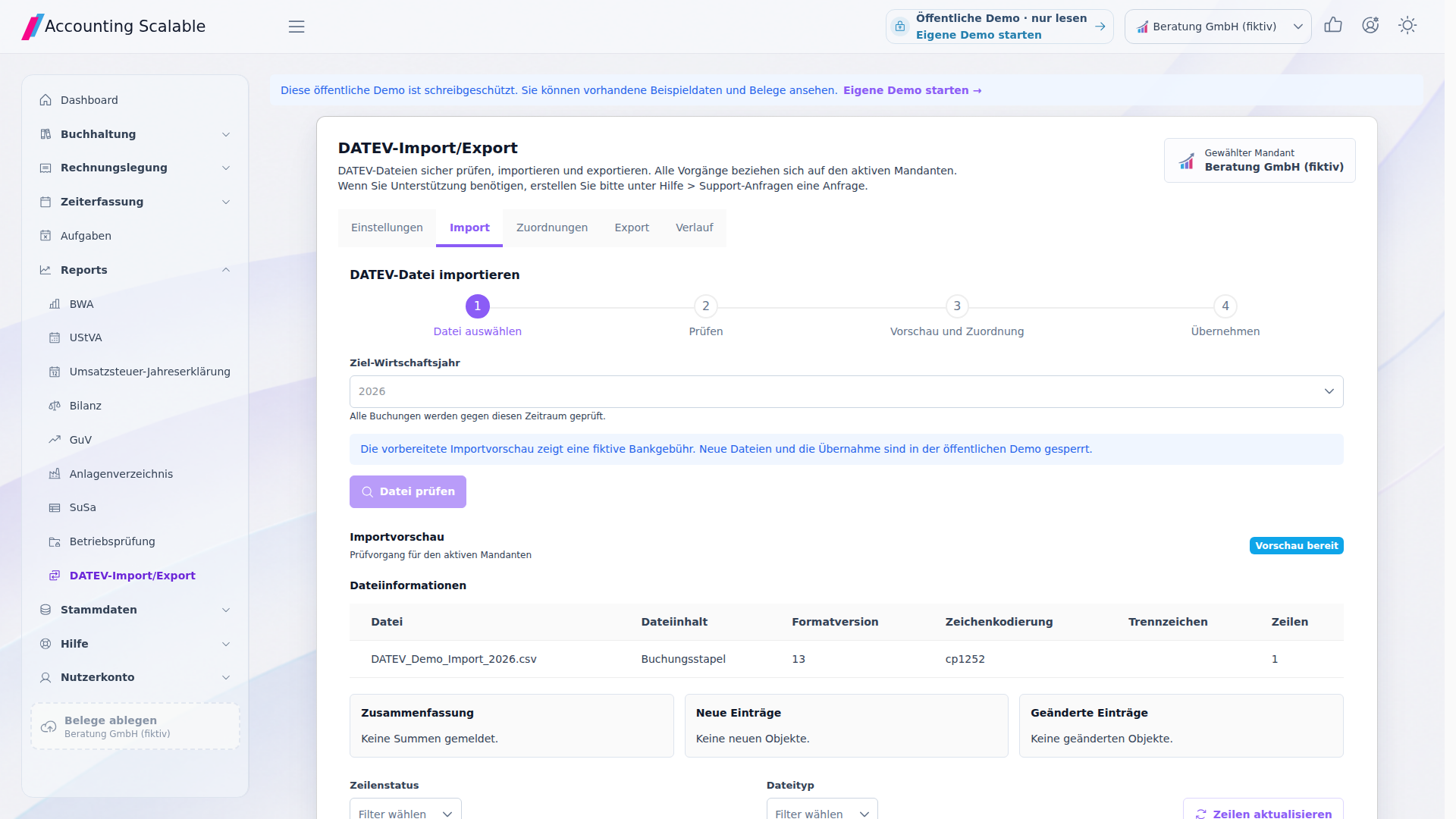
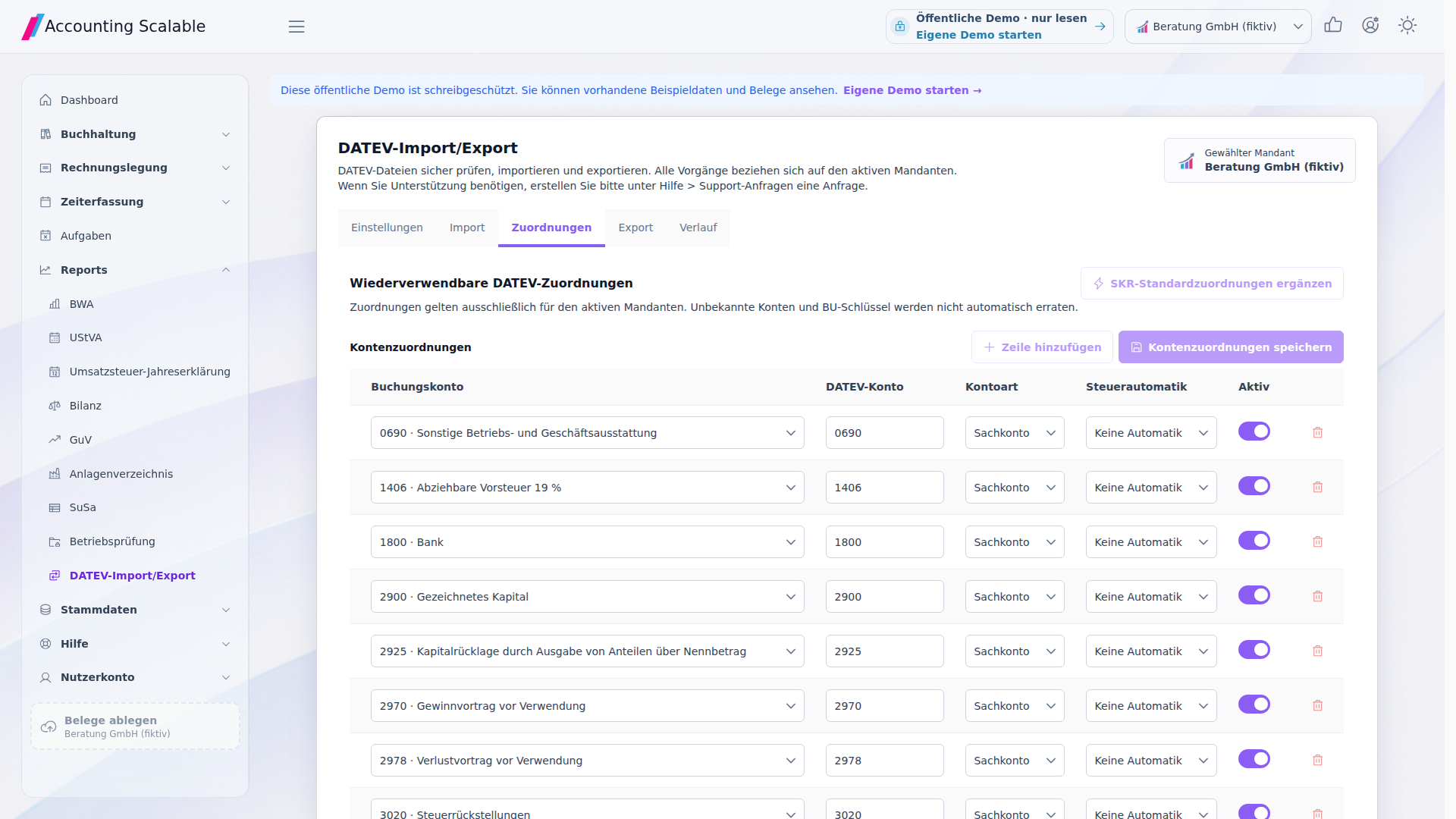
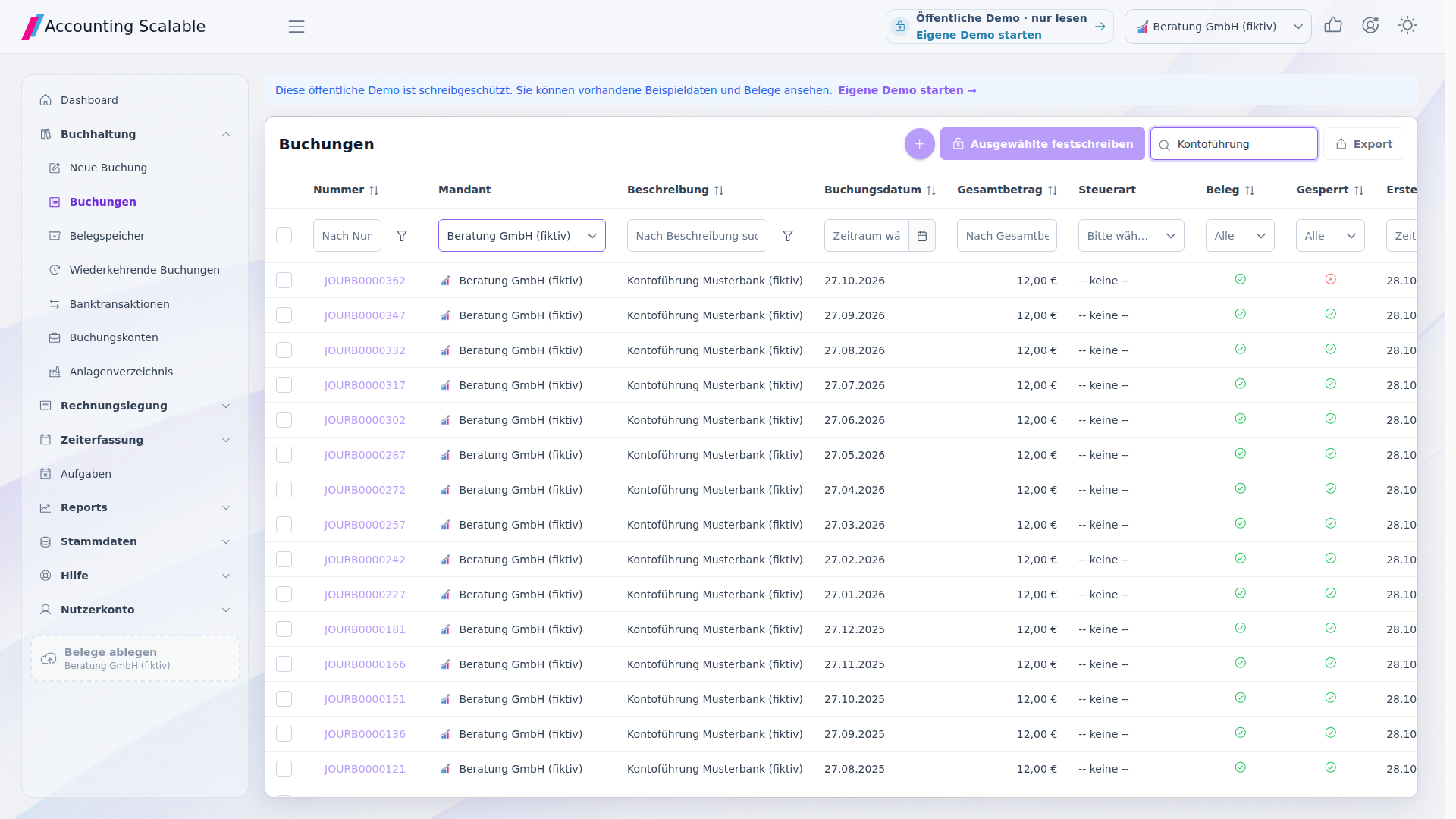
The images show the import screen, account mappings and existing postings in the public read-only demo. These views illustrate the interface using prepared fictional data. Use your own writable personal test instance to run a sample import.
Finally: review the transferred records
Compare source and destination for the same company and cut-off date. Start with the overall figures and then inspect individual transactions. Resolve the cause of each difference before relying on the destination records.
- Reconcile opening values and account balances to the source lists, including debit, credit and signs.
- Compare posting counts and debit/credit movements by period. Trace any differences in split entries and resolve missing or duplicated transactions.
- Check outstanding customer and supplier items by document number, remaining amount and due date. Later payments must not duplicate revenue or expenses already recorded.
- Open a representative sample of original documents and check that each links to the correct posting.
- Reconcile bank and cash balances, required asset values and account/tax mappings to the relevant reports.
- Record the transfer scope, remaining exceptions and the start of ongoing bookkeeping in the new system. Retire old operational records only after retention and access have been resolved.
Keep legacy data accessible and available for analysis
Before moving, preserve the required original documents, posting data and reports. Section 147 AO distinguishes, among other categories, ten-year retention for certain books and financial-statement records, eight years for accounting vouchers and six years for other specified records. The record category and any longer applicable requirements determine the actual period.
Electronic records must remain available, readable and machine-evaluable as required throughout the applicable retention period. A software change or successful import therefore does not automatically permit deletion of the old records. Clarify archive access and exports for the period after cancelling the old service as well.
Sources and information date
- Section 147 AO: retention and data access
Paragraphs 2 to 6; different document categories and system changes Retrieval / comparison: 2026-11-20.
- DATEV feature scope and limits
Supported posting files, import preview and mappings. Retrieval / comparison: 2026-11-20.
- Section 252 HGB: opening values and prior-year closing accounts
Consistency of opening and prior-year closing balance-sheet values under subsection 1, item 1. Retrieval / comparison: 2026-11-20.
- Accounting Scalable: AI integration through MCP
Document uploads, technical posting preview, posting creation and the relevant requirements. Retrieval / comparison: 2026-11-20.
See the right workflow for yourself.
Start with synthetic examples in the read-only demo. Then check your own test records in your personal instance.
Notes and requirements
This article provides general information and does not constitute individual tax advice. You remain responsible for reviewing your bookkeeping, annual financial statements and tax returns.
The examples use fictional companies and simplified workflows. Your own documents, business transactions and responsibilities determine your specific work plan.
DATEV file import and AI-assisted transfer are different routes. Supported source data, accounts and document formats determine the scope. Test a small sample before the full transfer, then reconcile the destination records to your sources. DATEV file exchange in detail